
PagePop Guide
How to download Wattpad stories to Kindle.
Use PagePop on iPhone or iPad to turn an authorized Wattpad story link into a Kindle-ready ebook, then transfer it directly to Kindle over your local Wi-Fi.
Updated September 20, 2026 · First published July 25, 2026
Free to download, with optional in-app purchases. Requires iPhone or iPad; conversion happens in the app.
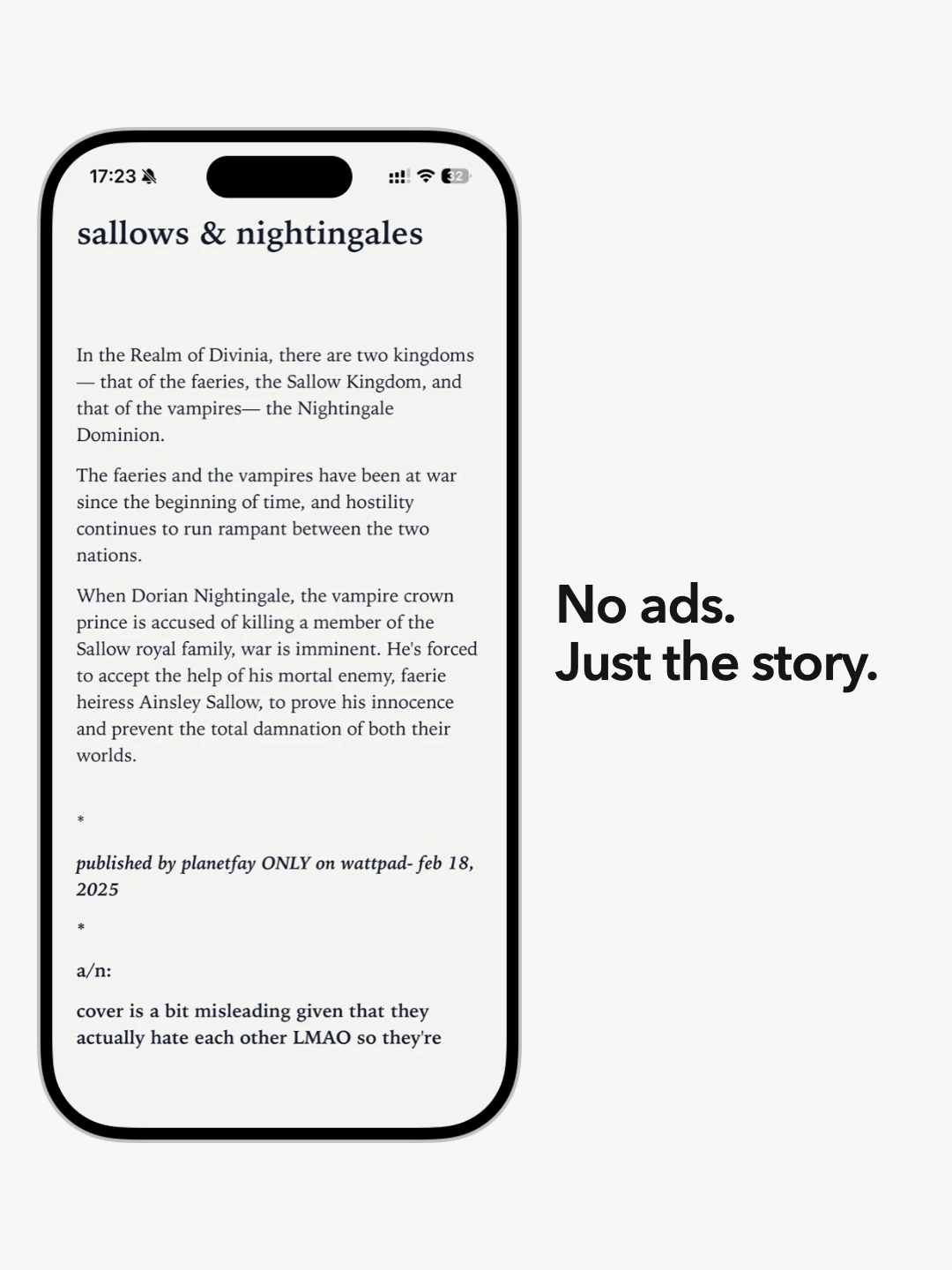
What you need
- PagePopiPhone or iPad · iOS 16.2+
- Story linkA Wattpad URL you may convert
- InternetTo read the story and its chapters
- Your KindleWeb browser + shared local network
Two parts
Create online. Transfer locally.
PagePop needs internet access while it reads the Wattpad story information and available chapters. It then creates an AZW3 or MOBI ebook and adds the generated file to your PagePop bookshelf.
The final transfer is local: your Kindle downloads the generated book from a temporary PagePop address while both devices are on the same Wi-Fi network or iPhone hotspot. This route does not use a Kindle email address.
Only convert stories you wrote or otherwise have permission to download and read this way. PagePop does not bypass paywalls, private-story access, or other restrictions.
Step by step
From a Wattpad link to your Kindle library.
- 01
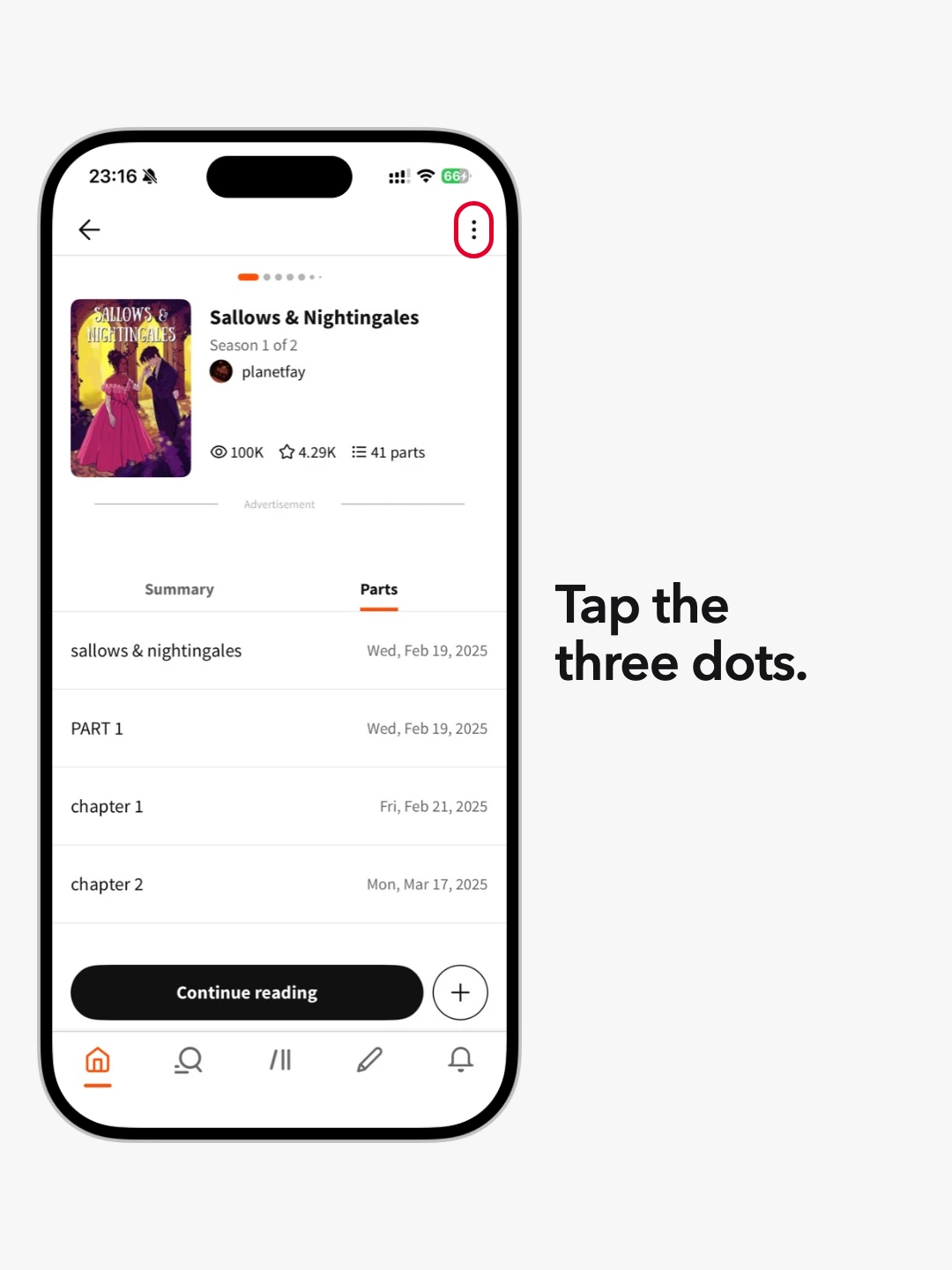
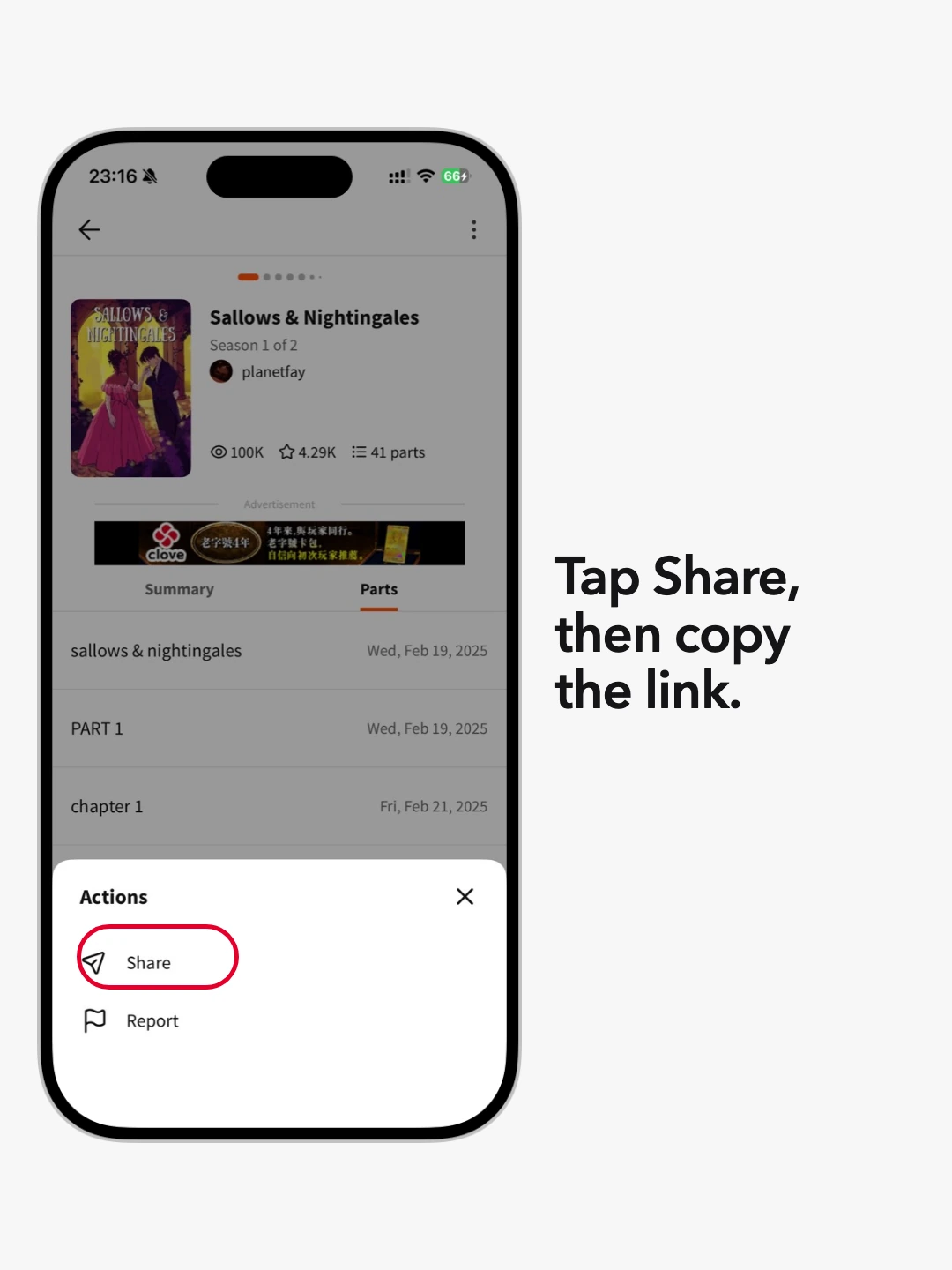
Copy the Wattpad story link
Open the story you want to read and copy its complete Wattpad story URL. Use a story you wrote or one you are authorized to convert.
- 02
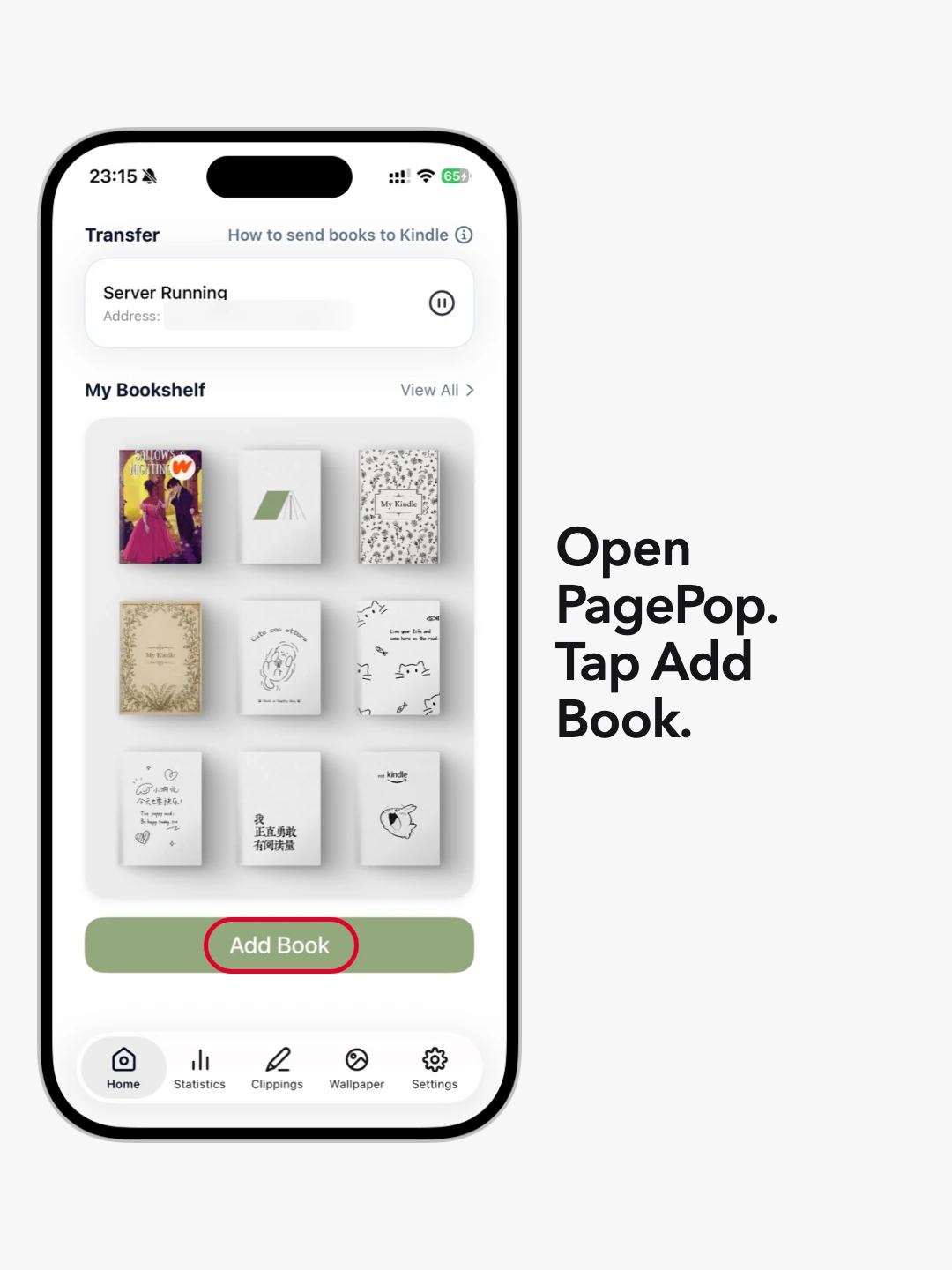
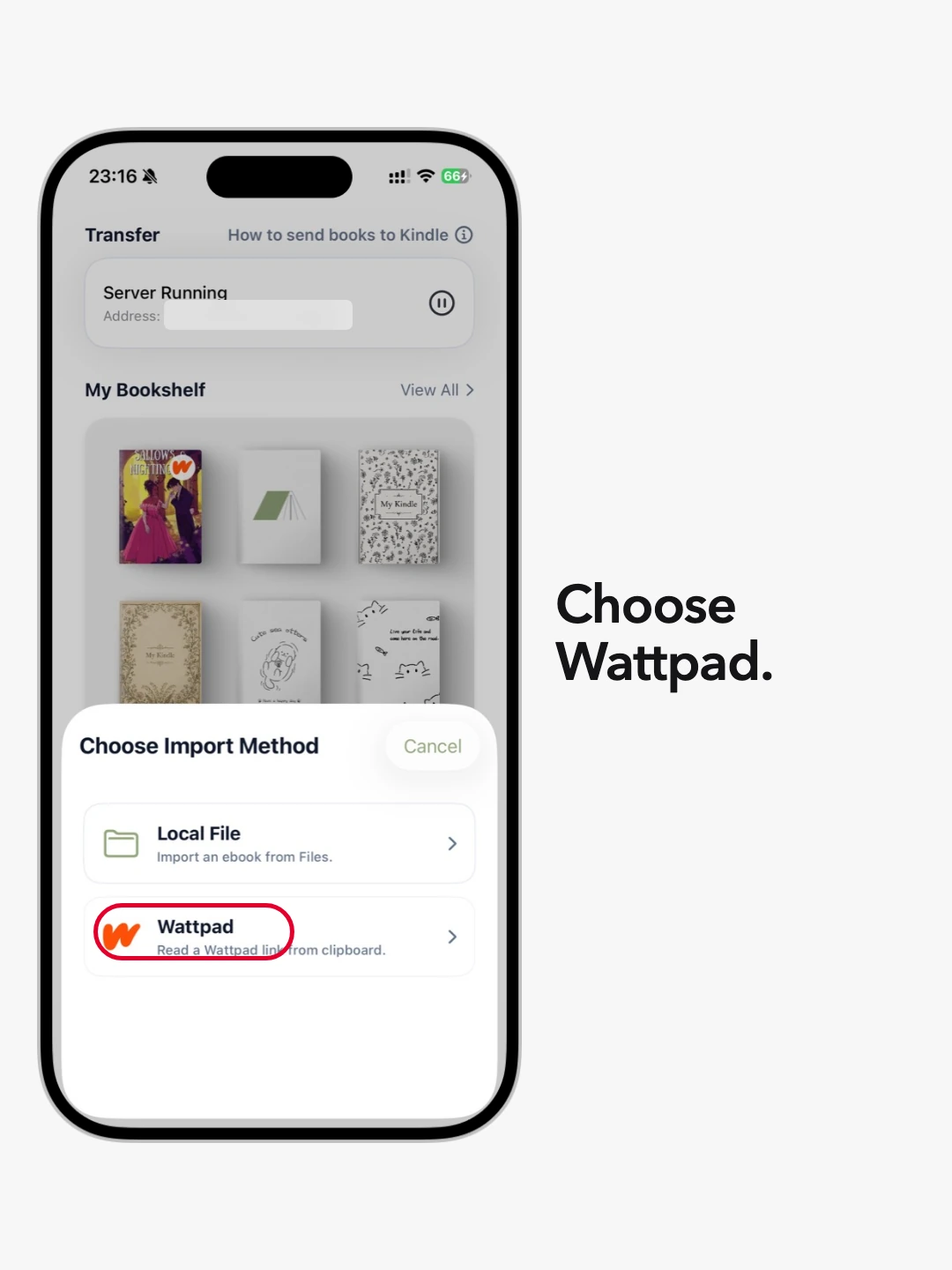
Choose Wattpad import in PagePop
Open PagePop, tap Add Book, and choose Wattpad. Paste the URL into the Wattpad link field. If the link is already on your clipboard, PagePop can recognize it automatically.
- 03
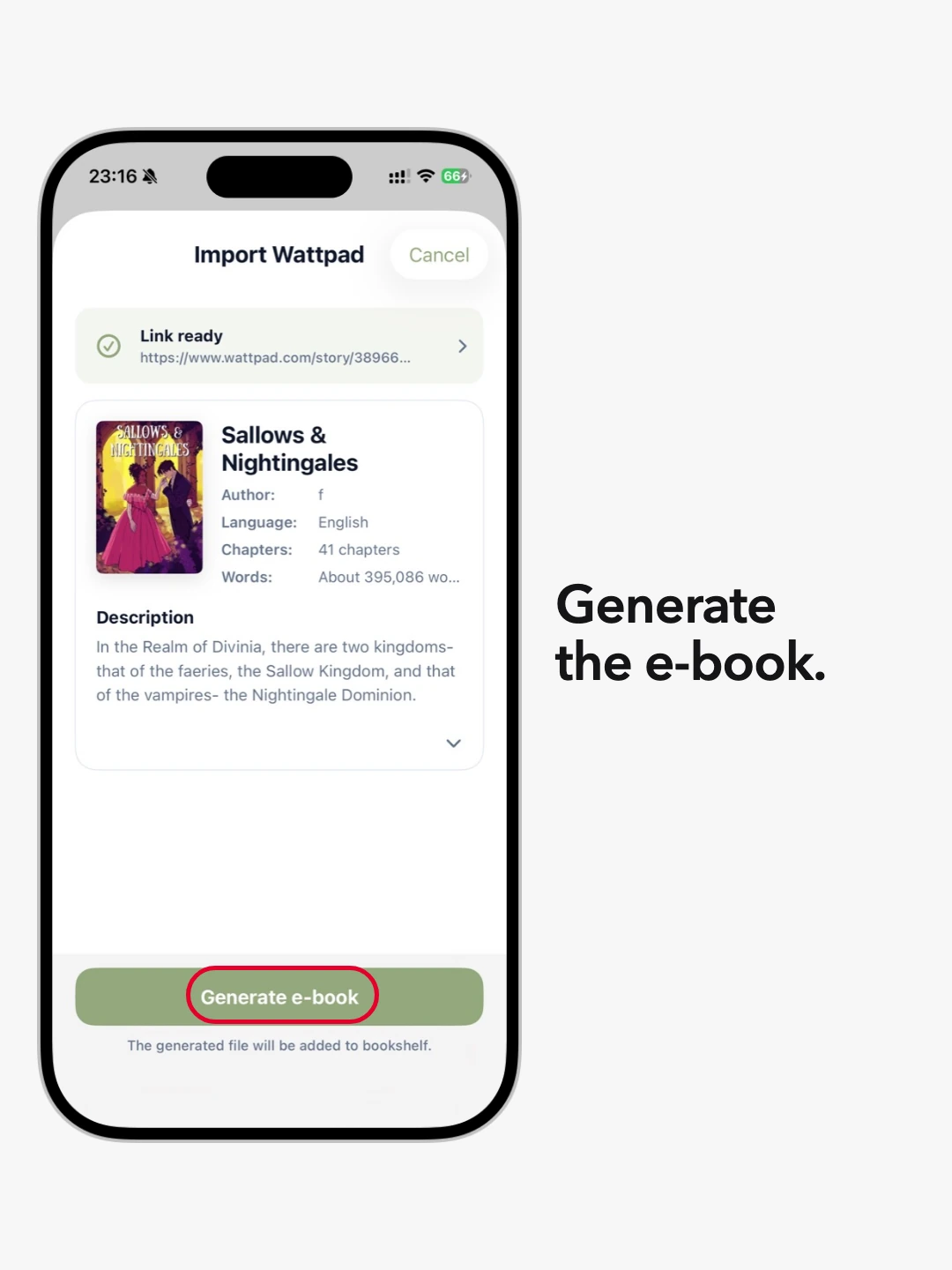
Review and generate the ebook
Once PagePop recognizes the link, confirm the title, cover, language, description, and available chapters. Then tap Generate e-book. PagePop builds the book in your selected output format and adds it to the bookshelf.
- 04
Start PagePop’s local file service
Connect the iPhone or iPad and Kindle to the same Wi-Fi network—or connect Kindle to the iPhone’s Personal Hotspot. Start the file service in PagePop and keep the app open.
- 05
Download the generated book on Kindle
Open the Kindle web browser, enter the complete address shown by PagePop, choose the generated Wattpad book, and tap Download. Wait for it to finish before leaving PagePop.
Troubleshooting
If the story or transfer does not work.
Check these in order:
- The URL is a complete Wattpad story link, not a profile or search link.
- The story and its chapters are available to you without bypassing access restrictions.
- The iPhone or iPad has internet access while PagePop analyzes and generates the ebook.
- The generated ebook appears on the PagePop bookshelf.
- Kindle and PagePop are on the same Wi-Fi network or iPhone hotspot.
- PagePop remains open until the Kindle download finishes.
For more local-network checks, use the complete Kindle transfer guide.
Open PagePop SupportWattpad to Kindle: common questions
Can I read Wattpad on Kindle?
Yes. PagePop turns an authorized, available Wattpad story into an AZW3 or MOBI ebook on your iPhone or iPad. Transfer the generated book over local Wi-Fi and read it on Kindle; you do not install the Wattpad app on the e-reader.
How do I download Wattpad stories on iPhone?
Copy the story URL, open Add Book → Wattpad in PagePop, review the available chapters, and tap Generate e-book. The steps above show how to download the result on Kindle.
Does this download Wattpad as an app?
No. This guide is for downloading stories you are authorized to convert and reading them on Kindle. PagePop is a separate iPhone and iPad app, not a download of the Wattpad app.
Do I need an email address, computer, or cable?
No. Kindle downloads the generated book from PagePop over the same Wi-Fi network or an iPhone hotspot. Keep PagePop open during transfer. This does not add the book to your Amazon cloud library.
Can I export a Wattpad story as PDF or EPUB here?
This Wattpad-to-Kindle workflow generates AZW3 or MOBI inside PagePop. This website is a guide, not an online PDF or EPUB converter.
Can I read the book offline afterward?
Once the generated book has downloaded to Kindle, you can read it offline. Internet access is required when PagePop retrieves the story and its available chapters.
Is PagePop free?
PagePop is free to download, with optional in-app purchases. Check the app for current feature access and pricing before starting.
Ready to try it?
Turn the next authorized story into a Kindle-ready book.
PagePop is free to download on iPhone and iPad, with optional in-app purchases.